GIT Clone in GitLab
How to do a Git Clone operation over SSH with MacOS Terminal
Pull down a project/repository from GitLab to MacOS to work on it locally.
PREREQUISITES
- GitLab project to clone to your local
- Familiarity with Mac Terminal app
- SSH access to GitLab and your password/phrase
STEPS
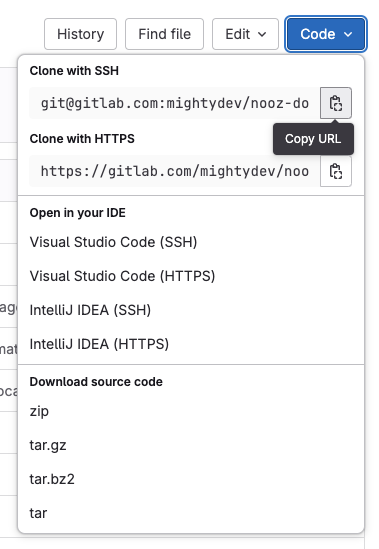
STEP 1: Navigate to your project on the GitLab website. My example is Nooz Docs.

STEP 2: Click the blue 'Code' button, and in the drop down menu copy the URL for Clone with SSH
STEP 3: Open Terminal app on MacOS, and navigate to the directory where you will download your cloned project.
tip
USE THIS TECHNIQUE to get to your target directory in the Finder and open Terminal from there
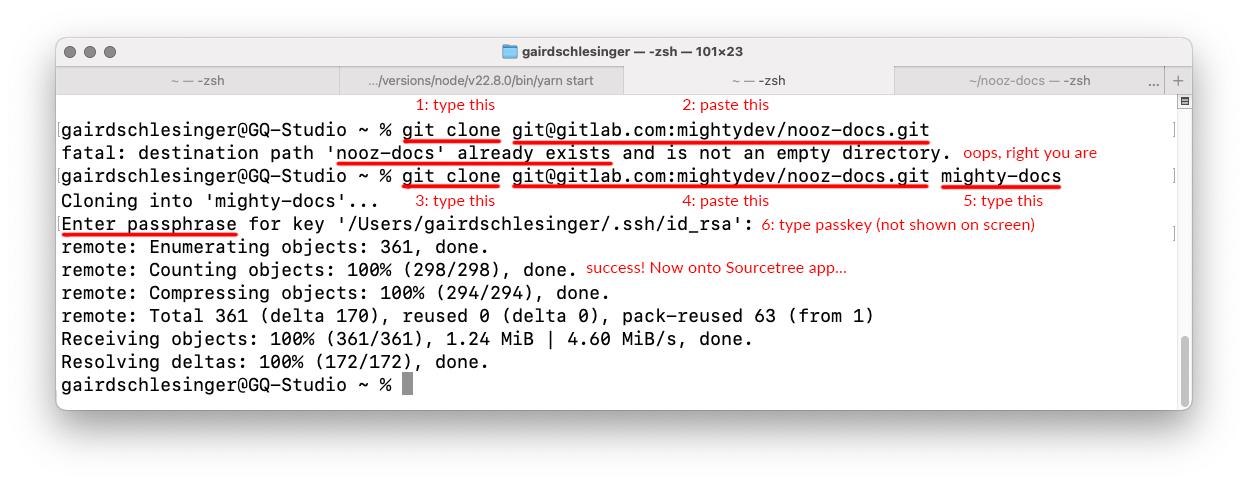
STEP 4: At the prompt do the following steps:
- Type 'git-clone'
- Paste the SSH URL you copied in step 2
- Type the directory name you want to create, into which the cloned project will be written (I included my mistake in the screenshot where I forgot this)
- Enter your SSH passkey
RESULTS
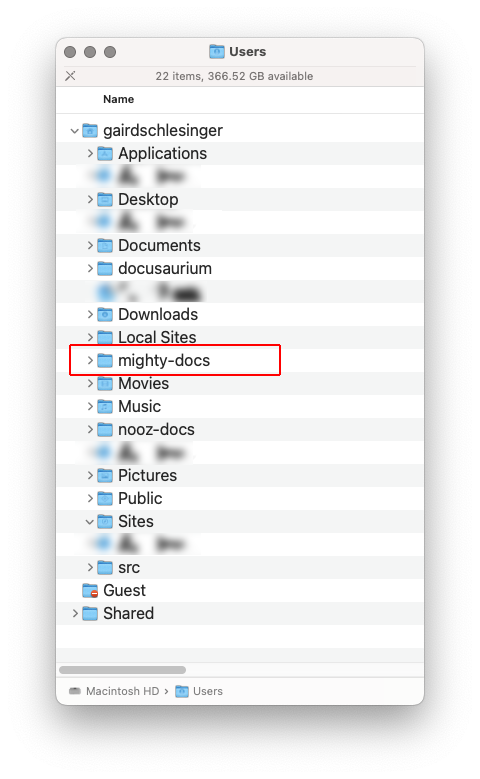
You should see a new folder in your target directory with the cloned project
NEXT STEP In our dev ops process, the next step is to add this project to SourceTree, our source control app.