Notaku and Notion for docs
Using Notion and Notaku for Docs websites
How does this whole Notaku thing work?
First things first: Dana found this, he gets the credit.
FedEx clip: I said it like 'this'
But really, how does it work?
What I can tell right now…
- Notion is a popular tool that does all sorts of stuff for running a company’s operations, including EZ writing of docs.
- While you can publics docs to the web from within Notion, it is a one column page with crumb navigation only. Their template does not support a left nav for the TOC, or the right column in-page outline view.
- Notion is primary focus is an internal team tool, meant to be used within an organization, so making some of your docs into a public website is not as robust feature set, among all the other features for internal sharing.
- The maker(s) of Notaku fills that gap with a drop dead simple way to get stuff published, and adds a nicer docs template along with other features above Notion.
- Notion may add those features, or acquire Notaku. We’ll see.
Either way, testing is going very well so far. It involves using two tools, but both apps are really smooth experience, no real learning curve, I got this far after about 20 minutes of reading their (very well written) docs and just dinking around.
Gaird is testing this thing
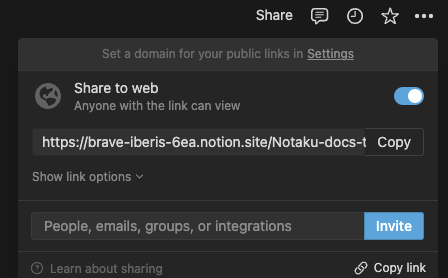
Notaku needs your root page to be public to be able to sync with Notion, to make a page public you need to click the “Share to web” button.
Then you will just need to copy the url and paste it in the Notaku dashboard.
Gaird Writing content for your site
Notaku supports most of the Notion block types, you can find a list here
Need help Gaird?
In case you need help you can read the Notaku documentation or reach out on the Notaku site live chat.
The image below is an external image from Sirv.com
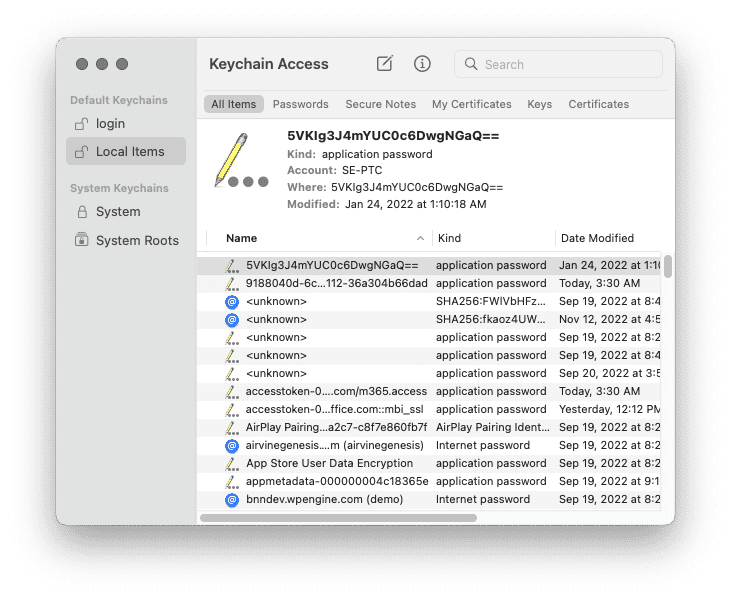
Embedding content & images
Embedding content is useful to add interactivity to your site.
In Notion you will use the /embed block.
For example you can add an email signup form like the following
https://buttondown.email/morse?as_embed=true
You can read more in the docs
EMBED IMAGES FROM A 3RD PARTY SERVICE
Our best practice at Mighty Digital is to use an external service for hosting media files whenever possible. This is primarily for static graphics or animated GIF files. Video is commonly hosted externally from Youtube or other services, which is the generally accepted way to manage video today. We extend this process to hosting static media, too. In the case of larger sites, or those with high-powered needs, there are a variety of commercial media hosting options from services like Cloudinary or Sirv. Those services may also manage video hosting.
This comes from years of experience (and difficulties) using built-in image hosting with whatever service is hosting the CMS.
THE PROBLEM WITH MEDIA MANAGEMENT IN THE CMS
In the case of of a CMS like WordPress or Notion, while the content can be exported or cross posted to another service like Notaku relatively easily, the management of media remains problematic. When the images are hosted in the CMS, they are not as easy to manage as the page content. The links need updating within the HTML if the content is moved to another server, replacing a media file requires cache clearing a/o link updating, the media may have to be moved, and the storage becomes an issue that impacts hosting costs and page speed performance when the library gets larger. We have experienced all of these issues, and putting all media on an external service greatly reduces or eliminates the headaches, lowers cost, and improves page speed.
For this reason we take the extra step up front of hosting media externally wherever possible. It takes a bit of setup but is well worth it. This allows a page to be readily portable without having to worry about media links (or storage, or moving files, or re-doing links).
ADDING IMAGES TO NOTION FROM SIRV.COM
Prepare your images in advance and post them to your Sirv.com account. View the image and copy the URL Sharing link to the clipboard.
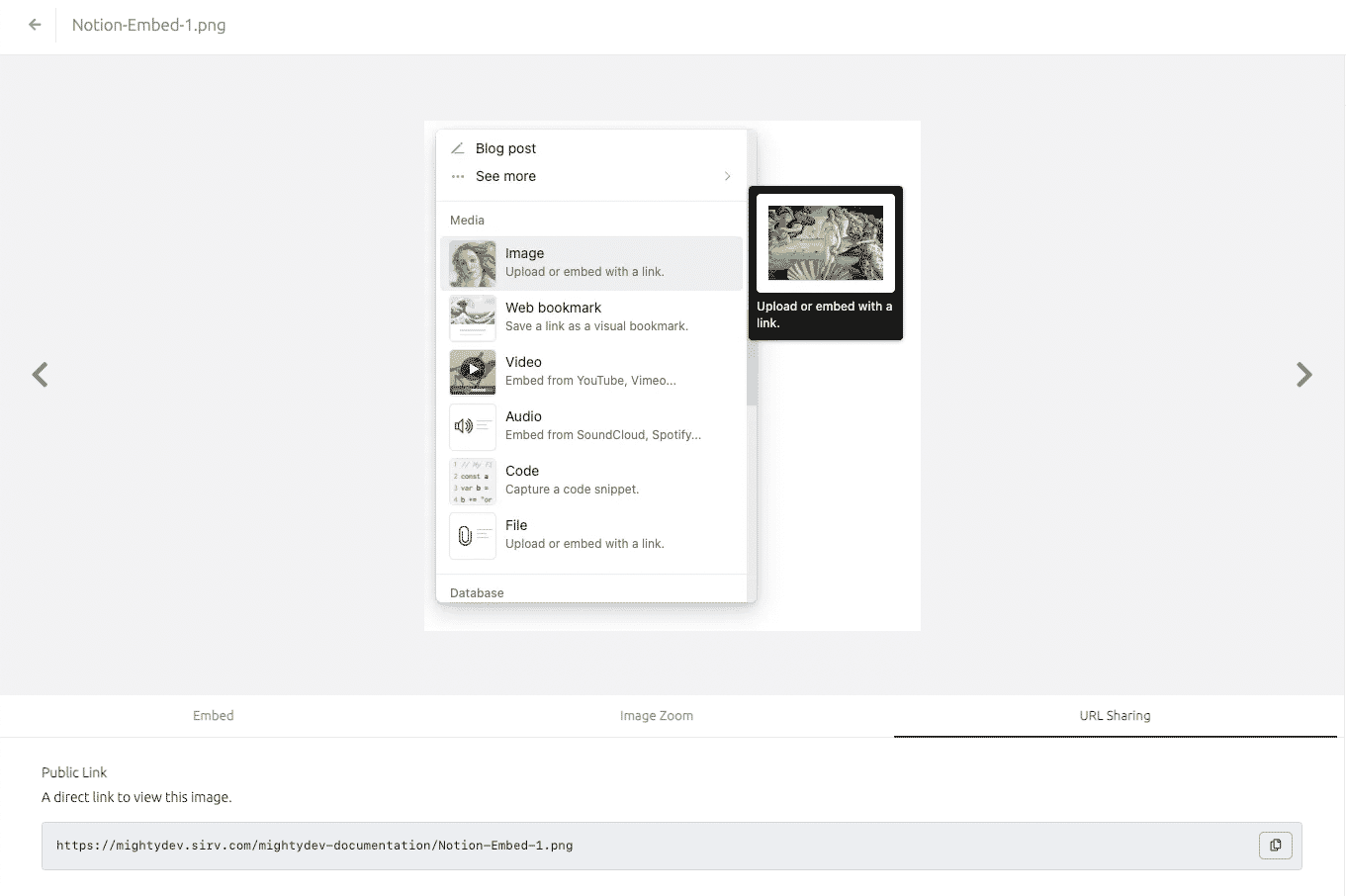
Getting the image URL from Sirv.com
In the Notion editor, use the Media Embed technique for images. Click the plus sign next to a block or type the slash to bring up the context menu.
In the context popup, scroll down and select Media > Image
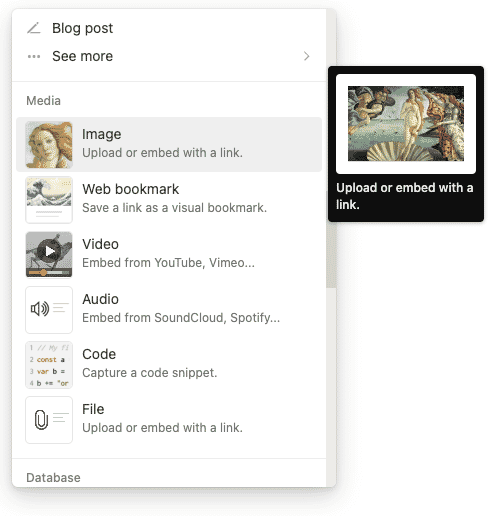
Bringing up the Image embed menu in Notion
In the next window, select the “Embed link” tab, and paste the URL sharing link from Sirv.com, press Enter or Return to complete.
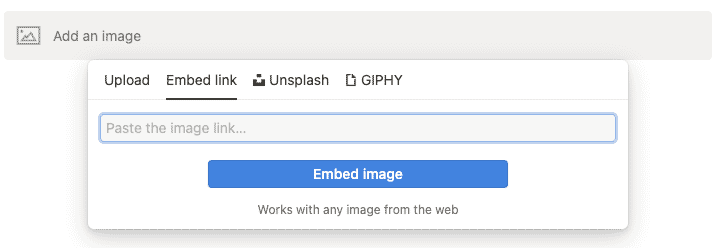
Pasting the image URL in the Notion editor
Scale, align, and add captions as you see fit for your page, and you are done.
Getting started
Notaku supports almost all of Notion editing capabilities
You can color text and add text styles or even color backgrounds
It’s also cool to add some inline code or code blocks
console.log(`Hello world!`)
Lists
You can also use toggle blocks to hide blocks
-
Hidden content 1
Hey, you found me!
-
Hidden content 2
Leave me alone!
You can write numbered lists
- Number 1
- Number 2
- Number 3
- Nested a
- Nested b
You can also use bulleted list
- Bulleted list 1
- Bulleted list 2
- Bulleted list 3
Callouts
Links
You can create links to pages in Notion by typing the @ character and then typing the target page.
Page links are different from page blocks, page blocks are unique and will be displayed in the sidebar, page links are not.
Bookmarks
Url links
This is a website link
Images
Notaku supports the Notaku image block, serving images directly from the Notion CDN.
Images on Notaku are also zoomable by clicking on them.
On the first load images will also display a skeleton block with the same aspect ratio as the image to prevent layout shifts.
Here is an example image:
Notaku supports image caption, these are also used as alt attributes
Resizing images
Images by default will take 100% of the page width, to make them smaller, resize them in Notion to have width lower than the content width (the width that other text paragraphs take).
Here is an example image that's smaller than the page width:
Smaller image
Images maintain aspect ratio
Even when images are loading they maintain their aspect ratio to prevent layout shifts