SSL Error fix in Local
SSL Error workaround in WPEngine Local
How to get SSL certs to work correctly in Local sites on MacOS
OVERVIEW
WPEngine's Local app has a recurring issue on the Mac with SSL certs it creates. Local creates a fake SSL cert for the browser, but there is a known bug where browsers don't see it. So you need to take extra steps to get them to work.
::: This is a long standing issue with Local for going on two years. It is one of several reasons the app is not quite there for regular production use. :::
THE REQUIREMENT
On a site you create in Local, you need to have an SSL cert to get your browser to load the site without a security warning, or blocking access altogether.
THE PROBLEM
When you create the SSL cert, it doesn't work seamlessly, and you have to take extra steps.
THE USE CASE (Mine, at least)
You click the Trust link in the Overview section for Local to generate a local SSL cert to keep the browser from blocking your site.
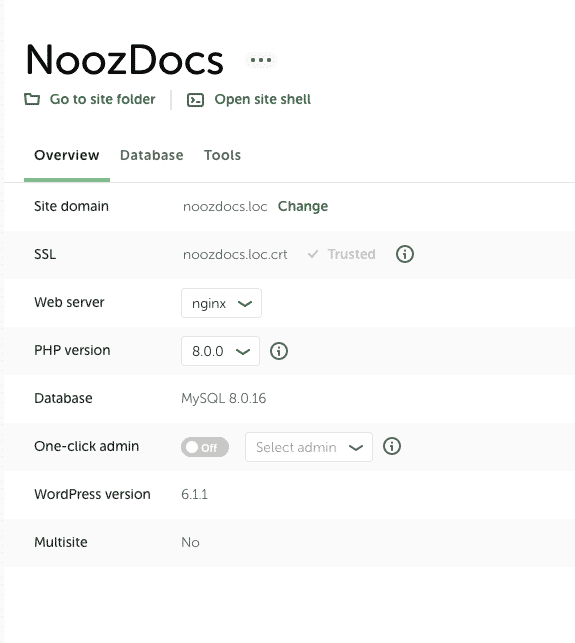
After clicking on Trust, you get an error message like this one at the top of the Local app:

You click the Learn More link, which goes to this post in the Local Help docs. That post explains the fix.
THE FIX
Following the link above explains how you use Keychain App to manually Trust the cert that was created by Local. Summary of steps include:
- Open the Keychain app in the Utilities folder
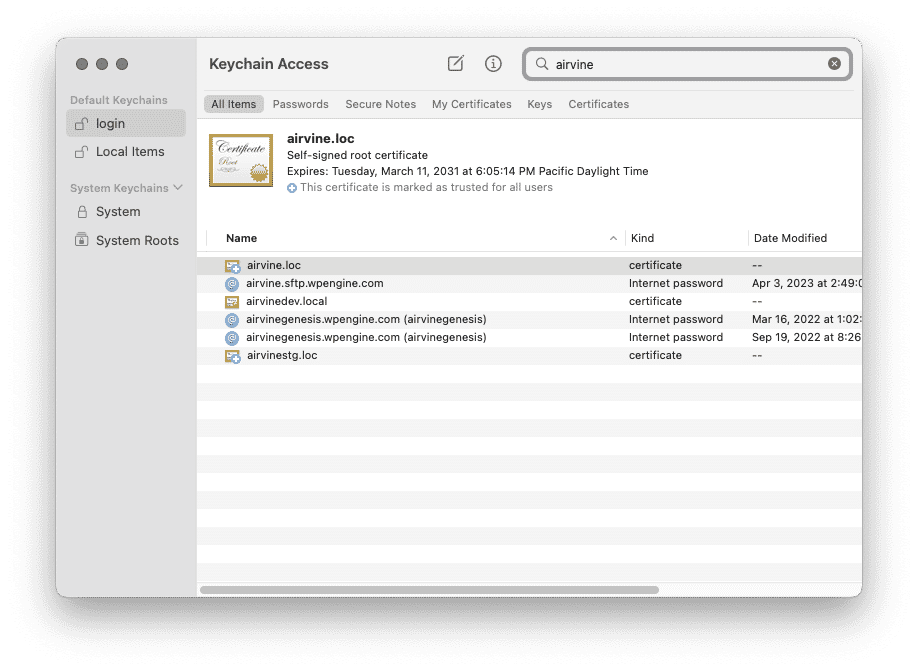
- Search for the name of the local website in question
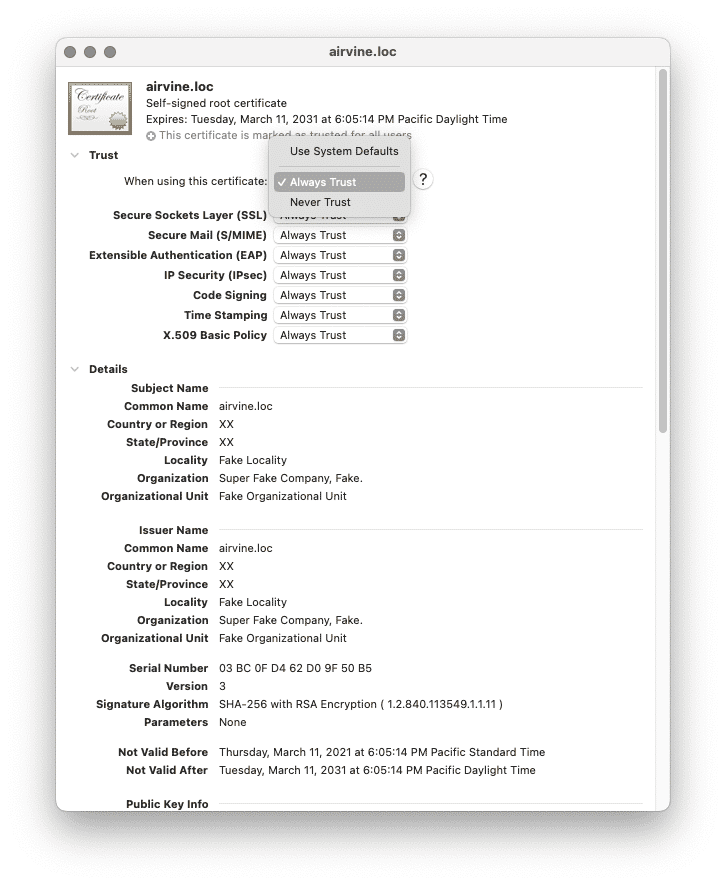
- Set Keychain to Always Trust the site
- Close Keychain to save the changes
You should be prompted to enter your site password when closing Keychain. It may take repeated attempts to get the Always Trust setting to stick. It does for me.
Search on your Local site by name and double-click on it:
Set self-signed root certificate to Always Trust:
THE CAVEAT
This method works OK for newly created sites in Local v6.4.1 on up. But if you have older sites you may need to take another step.
THE EXTRA STEP FOR OLDER SITES
Follow this article for the fix on older sites
Summary of steps include:
- Delete old certs
- Regenerate in Local (Click Trust)
- Repeat steps above in Keychain
Path to certs folder
~/Library/Application Support/Local/run/router/nginx/certs
In a Finder window, press Cmd + Shift + G to bring up a search box, paste this string and you should go right to the directory. My full path looks like this:
/Users/gairdschlesinger/Library/Application Support/Local/run/router/nginx/certs
FINAL NOTES
You may need to reboot Local, your browser (after a cache clear and Hard Reload), and even MacOS to get some of these settings to stick.